To use the Kimi API, sign in to the Kimi API Platform, create a key on the API Keys page, and save it as an environment variable. Then point any OpenAI-compatible SDK at Moonshot's base URL, set the model to kimi-k3 or kimi-k2.6, and send a chat request. The whole setup takes about five minutes.
The confusion starts before the first line of code. Kimi is a consumer chat app, a coding product called Kimi Code, and a developer platform, and each has its own login and keys. The platform runs on two domains, one international and one Chinese, with different currencies. Model names keep changing, so searches like "Kimi AI API" and "Kimi 2.5 API key" often land on pages that no longer match the current lineup.
This guide walks through the setup in order. You will see what the API is and what it costs, then create a key, choose a model and base URL, and send your first request. The last step shows how to run the same code against a hosted Kimi endpoint. Geodd serves Kimi K2.6 through an OpenAI-compatible API, so that step uses it as the example.
What the Kimi API is and what it costs
The Kimi API is Moonshot AI's developer interface to its Kimi models, billed per token. Before you create anything, know which site to use and what a request will cost.
Two platforms, one API format
Moonshot's API follows OpenAI and Anthropic request formats. The Chat Completions and Responses endpoints work with the OpenAI SDK, and the Messages endpoint works with the Anthropic SDK. You can keep your existing client code and change only the key, base URL, and model name.
Moonshot runs platform.kimi.ai for international accounts and platform.kimi.com, which prices in yuan. If you build for a US audience, use the .ai site. Kimi Code is a separate product for Kimi members. Its console lets you create up to 5 keys, each shown only once, so manage those apart from your platform keys.
Create your key on the platform you plan to call, because keys and endpoints belong together.
What it costs and whether it is free
The platform bills pay-as-you-go per million tokens (MTok). Its home page lists no free tier, so budget for paid usage and check your console for any starting balance. Rate limits rise automatically as your cumulative spend grows. These are the USD rates listed on platform.kimi.ai:
| Model | Model ID | Context | Input | Output | Cache hit |
|---|---|---|---|---|---|
| Kimi K3 | kimi-k3 | 1M tokens | $3.00 | $15.00 | $0.30 |
| Kimi K2.7 Code | kimi-k2.7-code | 256k tokens | $0.95 | $4.00 | $0.19 |
| Kimi K2.6 | kimi-k2.6 | 256k tokens | $0.95 | $4.00 | $0.16 |
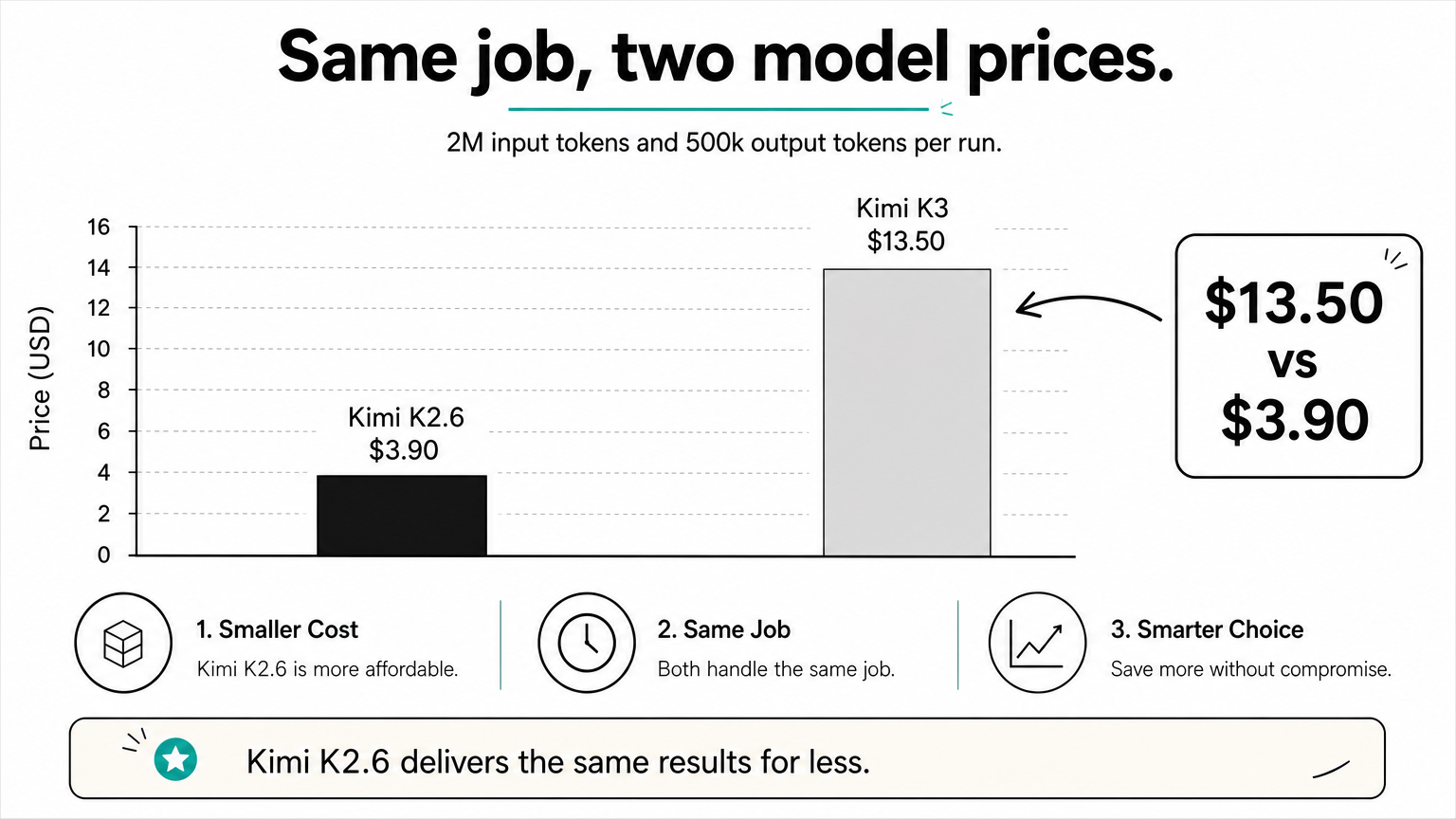
Here is a worked example. A job that sends 2M input tokens and returns 500k output tokens costs about $3.90 on K2.6 (2 × $0.95 + 0.5 × $4.00). The same job costs about $13.50 on K3 (2 × $3.00 + 0.5 × $15.00). Cached input is billed at the cheaper cache-hit rate, so repeated system prompts cost less.
Step 1. Create your API key
You create the key in the platform console, copy it once, and keep it out of your code.
Create and copy the key
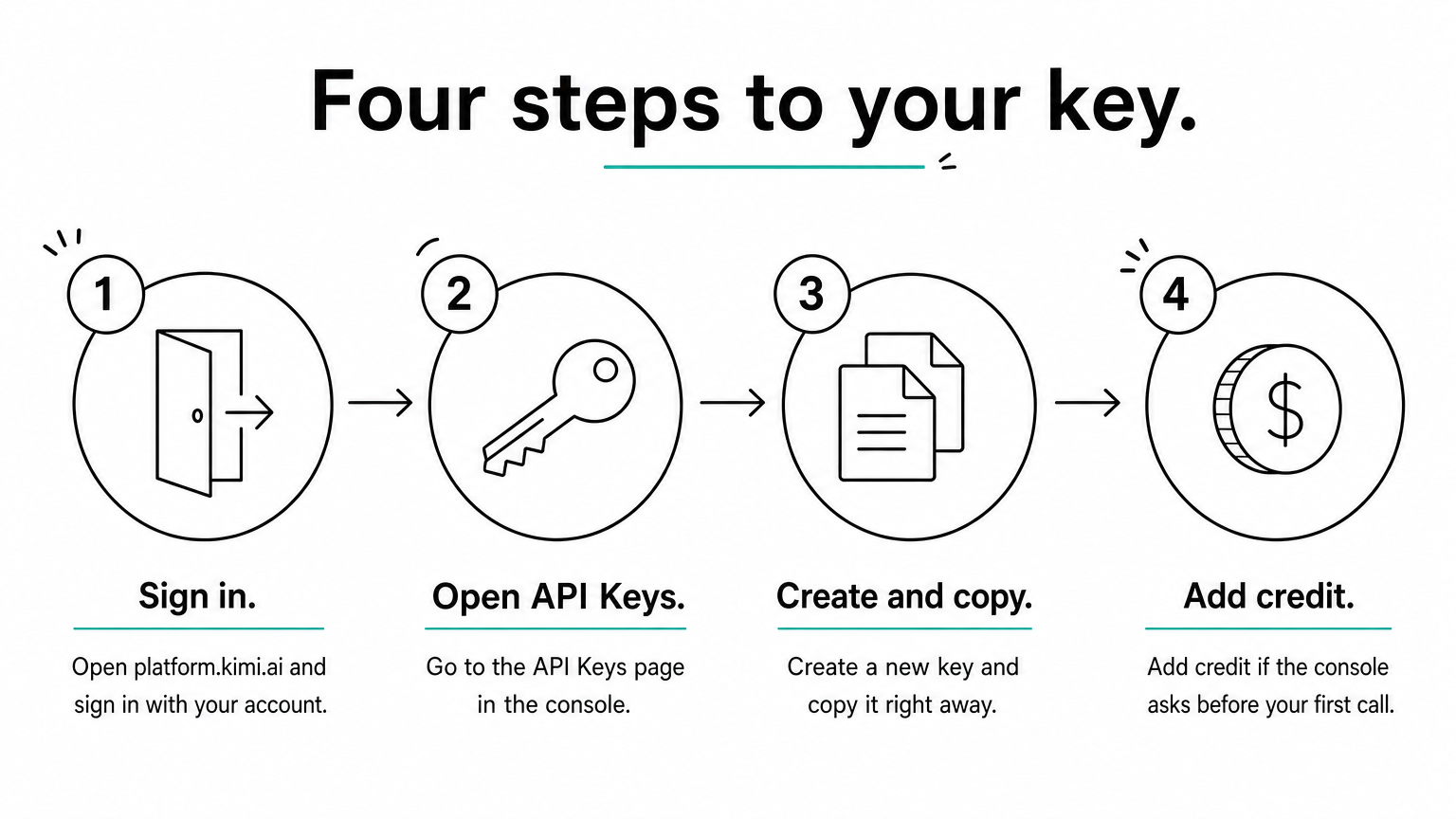
- Open platform.kimi.ai and sign in.
- Go to the API Keys page in the console.
- Create a new key and copy it immediately.
- Add credit to your account if the console asks for it before your first call.
Store the key outside your code
Treat the key like a password. Never hardcode it or commit it to a repository. Save it as an environment variable instead:
export MOONSHOT_API_KEY="your_kimi_api_key"
If a key leaks, delete it in the console and create a new one.
A note on Kimi 2.5 keys
A key is not tied to one model. You create it once and choose the model in each request's model field. If you searched for a Kimi 2.5 key, the process is the same. The platform's current lineup lists K3, K2.7 Code, and K2.6, so check the model list in your console for K2.5 before you build on it. Older models get replaced.
One key unlocks every model your account can call, so the model name in the request does the choosing.
Step 2. Choose a model and base URL
Pick the model by task, then set the base URL that matches your platform.
Match the model to the job
The docs recommend starting with kimi-k3. It is the flagship, with a 1M-token context window, and suits long-horizon coding, knowledge work, and deep reasoning. Choose kimi-k2.6 for general chat, vision, and agent tasks when you want lower prices. It accepts text, image, and video input and has thinking and non-thinking modes. For code generation and coding agents, use K2.7 Code. If you need faster output, the docs name kimi-k2.7-code-highspeed, so check its rate in the console.
Set the base URL
The base URL is where the OpenAI SDK sends requests. The international endpoint has been https://api.moonshot.ai/v1, and Moonshot's China-side docs use https://api.moonshot.cn/v1. Use the endpoint that belongs to the platform where you created the key. The docs in your console list the exact URL for your account, so confirm it there before you deploy.
A valid key sent to the wrong endpoint fails with an authentication error, so match the two before you debug anything else.
Step 3. Send your first request
Install the OpenAI SDK, then run a short chat call to confirm that the key, URL, and model all work together.

Run the first call
You need Python 3.8 or newer and the OpenAI SDK at version 1.0 or higher (pip install --upgrade "openai>=1.0").
import os
from openai import OpenAI

client = OpenAI(
    api_key=os.environ["MOONSHOT_API_KEY"],
    base_url="https://api.moonshot.ai/v1",
)

response = client.chat.completions.create(
    model="kimi-k3",
    messages=[
        {"role": "system", "content": "You are a concise assistant."},
        {"role": "user", "content": "Explain recursion in two sentences."},
    ],
)
print(response.choices[0].message.content)
Prefer a raw HTTP check? This curl command does the same thing:
curl https://api.moonshot.ai/v1/chat/completions \
  -H "Content-Type: application/json" \
  -H "Authorization: Bearer $MOONSHOT_API_KEY" \
  -d '{"model": "kimi-k3", "messages": [{"role": "user", "content": "Hello"}]}'
Add streaming, tools, and reasoning control
Once the first call works, add features through the same endpoint. Set stream=True to return text as it generates. Pass a tools list to enable tool calling, and use JSON mode when downstream code needs valid JSON. For multi-turn chat, resend the growing messages list each time.
K3 also takes a top-level reasoning_effort setting of "low", "high", or "max", with "max" as the default. With the OpenAI SDK, pass it as extra_body={"reasoning_effort": "low"}. Lower it for simple tasks to cut latency and output spend.
If the first call returns text, your key, base URL, and model are correct, and everything else is a parameter.
Step 4. Point the same code at a hosted Kimi
Because the API follows the OpenAI format, you can run the same client against another host by changing three values. This helps when you want a different region, data-handling terms, or one bill for several models.
What changes and what stays
Geodd serves Kimi K2.6 through an OpenAI-compatible API. Its listing shows model ID moonshotai/Kimi-K2.6, a 262.14K-token context window, serving from US-EAST, and zero data retention by default. Its catalog precision is fp8. The Kimi model Geodd lists is K2.6, so you need the official platform for K3.
| Official platform | Geodd | |
|---|---|---|
| Models | K3, K2.7 Code, K2.6 | Kimi K2.6 |
| Model ID | kimi-k2.6 | moonshotai/Kimi-K2.6 |
| Serving region | Per Moonshot's docs | US-EAST |
| Data handling | Per Moonshot's terms | Zero data retention by default |
Swap the values
Take the base URL and token pricing from the model page, then change only these lines:
client = OpenAI(
    api_key=os.environ["GEODD_API_KEY"],
    base_url=os.environ["GEODD_BASE_URL"],
)

response = client.chat.completions.create(
    model="moonshotai/Kimi-K2.6",
    messages=[{"role": "user", "content": "Explain recursion in two sentences."}],
)
Run your own prompts against both endpoints before you switch traffic, and compare latency and cost on your real workload.
Switching hosts is a three-line change, so test on real prompts instead of guessing.
Where to go from here
You now have the full path. Create a key on the platform that matches your region, store it in MOONSHOT_API_KEY, and set the base URL for that platform. Choose kimi-k3 for hard tasks or kimi-k2.6 for lower cost, then send a chat request through the OpenAI SDK. Budget for pay-as-you-go pricing, since no free tier is listed.
If you want a US-region host with zero data retention by default, see Kimi K2.6 API access on Geodd for pricing, limits, and integration examples.